

The Ultimate Guide to an Ergonomic Home Office Setup for Pain-Free Working
The Ultimate Guide to an Ergonomic Home Office Setup for Pain-Free Working
Working from home offers flexibility, but it often comes at a physical cost. If you find yourself rubbing your neck, stretching your back, or shaking out your wrists by mid-afternoon, your workspace might be working against you. An ergonomic home office isn't just a luxury; it's a necessity for long-term health and productivity.
In this comprehensive guide, we’ll walk you through the essential principles of posture correction tips and show you how simple adjustments—like using the right best laptop stand 2024 has to offer—can transform your daily work experience. Say goodbye to chronic pain and hello to a workspace that supports your body.
Table of Contents
Why Ergonomics Matter for Remote Workers
When you commute to an office, you likely have a standardized desk and chair. At home, you might be working from a kitchen table, a couch, or a bed. These environments are rarely designed for eight hours of continuous computer use.
Work from home essentials go beyond just a fast internet connection. They include tools that maintain your body's neutral position. Proper ergonomics reduces the strain on your muscles and tendons, preventing repetitive strain injuries (RSI) and improving focus. Investing in your setup is investing in your career longevity.
Common Pain Points: Neck Strain, Back Pain, and Wrist Fatigue
Before we fix the problem, we need to identify it. Most remote workers suffer from three main issues:
- Tech Neck: Looking down at a laptop screen forces your head forward, putting up to 60 pounds of pressure on your cervical spine. This leads to chronic neck stiffness and headaches.
- Lower Back Pain: Slouching or sitting without proper lumbar support compresses the discs in your lower back.
- Wrist Strain: Using a trackpad or a flat mouse on a hard surface can lead to carpal tunnel syndrome and tendonitis.
If you want to know how to fix posture while working from home, start by addressing these three areas.
Key Elements of an Ergonomic Workspace
Creating the best ergonomic setup for small spaces requires attention to detail. Here are the golden rules:
1. Monitor Height and Eye Level
The top of your screen should be at or slightly below eye level. You should not have to tilt your head up or down to see the center of the screen.
2. Keyboard and Mouse Positioning
Your elbows should be close to your body and bent at a 90-to-100-degree angle. Your wrists should remain straight, not bent up or down, while typing.
3. Chair Support and Foot Placement
Your feet should rest flat on the floor (or on a footrest). Your knees should be at the same level as, or slightly lower than, your hips. Use a chair with good lumbar support to maintain the natural curve of your spine.
Feature Spotlight: Aluminum Adjustable Laptop Stand
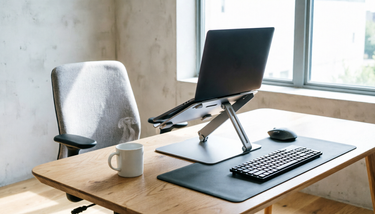
The cornerstone of any pain-free workspace is elevating your screen. Our Premium Adjustable Laptop Stand is crafted from high-grade aluminum, offering both durability and a sleek aesthetic that fits any home decor.
Why it works:
- Fully Adjustable Height: Raise your laptop to eye level to eliminate "tech neck" instantly.
- Improved Airflow: The open design allows heat to escape, keeping your device cool during intensive tasks.
- Space-Saving Design: Perfect for those looking for a home office setup for small spaces. It creates storage space underneath for your keyboard and mouse when not in use.
- Sturdy & Stable: Holds laptops up to 17 inches securely without wobbling while you type.
This isn't just a stand; it's an investment in your ergonomic office health.
Complement with an Ergonomic Mouse Pad
While the stand fixes your neck, our Ergonomic Mouse Pad protects your wrists. Designed with a contoured gel rest, it keeps your wrist in a neutral position, reducing pressure on the carpal tunnel. Combined with the laptop stand, these two items form the foundation of a healthy workflow.
Step-by-Step Guide to Setting Up Your Desk
Ready to transform your workspace? Follow these simple steps:
- Clear Your Desk: Start with a clean slate to maximize your available space.
- Position the Stand: Place the adjustable laptop riser for desk in the center of your workspace, directly in front of your chair.
- Adjust Height: Set the stand so the top of your laptop screen is at eye level. Sit up straight to test the angle.
- Connect Peripherals: Use an external keyboard and mouse. Place them on the desk surface below the stand, ensuring your elbows are at 90 degrees.
- Check Your Chair: Adjust your chair height so your feet are flat and your knees are level with your hips.
- Lighting Check: Ensure there is no glare on your screen. Natural light from the side is ideal.
Customer Success Stories
Don't just take our word for it. Here is what our community says:
"I used to have terrible migraines from looking down at my laptop all day. Since getting the Aluminum Adjustable Laptop Stand, my neck pain has completely disappeared. It's sturdy, looks great, and was so easy to set up!"
- Sarah J., Graphic Designer
"Living in a small apartment, I needed something that didn't take up much space but still improved my posture. This stand is perfect. I can tuck my keyboard under it when I'm done. Highly recommend for anyone working from home."
- Mark T., Software Engineer
Frequently Asked Questions
1. Can I use a laptop stand without an external keyboard?
While you can, it is not recommended for long-term use. Typing on a laptop keyboard that is elevated can cause wrist strain. For the best ergonomic experience, pair your stand with an external keyboard and mouse.
2. Is the aluminum stand compatible with all laptops?
Yes, our stand is designed to support most laptops ranging from 10 to 17 inches, including MacBook Air, MacBook Pro, Dell XPS, and more.
3. How does this help with back pain?
By raising your screen to eye level, you align your spine correctly. This prevents slouching and reduces the load on your lower back muscles, significantly alleviating pain over time.
Conclusion: Invest in Your Health Today
Your body is your most important asset. Don't let a poor workspace hinder your health or your productivity. By implementing these posture correction tips and utilizing the right tools, you can create a home office that supports you.
Ready to make the change? Explore our collection of work from home essentials today.
CTA: Shop the Aluminum Adjustable Laptop Stand Now and take the first step towards a pain-free workday.

The World's First Embedded Visual
Water Level Gravity Water Filter
Purewell © 2025 all rights reserved.